
Download MacUncle MBOX Converter – Fast, Secure Email Conversion Tool
Overview: Why MacUncle MBOX Converter Stands Out
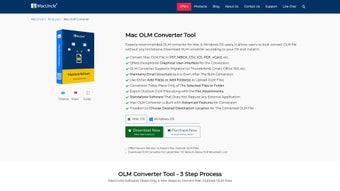
MacUncle MBOX Converter is a purpose‑built utility that tackles one of the most common headaches for both personal and corporate users: converting email archives stored in the MBOX format into widely accepted file types. Whether you are migrating a legacy mailbox to Microsoft Outlook, archiving important correspondence for legal compliance, or simply wanting to read old messages on a different platform, this software offers a reliable bridge between the past and the present. The tool supports conversion to PST, EML, MSG, HTML, DOC, and PDF, covering virtually every downstream requirement you might encounter.
Its dual‑platform nature—compatible with both macOS and Windows—means that teams with mixed environments can standardize on a single solution, eliminating the need to purchase separate utilities for each operating system. The free trial allows conversion of up to 25 email files, giving users a risk‑free opportunity to evaluate speed, accuracy, and ease of use before committing to a full license. What truly differentiates MacUncle MBOX Converter is its blend of powerful batch processing, flexible naming conventions, and direct migration options to cloud services such as Gmail and Outlook.com.
All these capabilities are delivered through an intuitive graphical interface that requires no additional software, scripting knowledge, or command‑line interaction. In short, the application promises 100 % conversion accuracy while streamlining the entire workflow from file selection to final delivery, making it a comprehensive solution for anyone who needs to manage, preserve, or relocate MBOX email files.
Key Features of MacUncle MBOX Converter
- Multi‑Format Export: Convert MBOX files to PST (Outlook), EML (individual messages), MSG (Microsoft Exchange), HTML (web‑viewable), DOC (Word), and PDF (archival).
- Batch Conversion Engine: Process dozens or hundreds of MBOX files in a single operation, saving time and reducing manual effort.
- Direct Cloud Migration: Push converted mailboxes straight to Gmail, Outlook.com, or other IMAP/SMTP servers without intermediate files.
- Customizable File Naming: Define naming patterns (date, subject, sender) to keep converted files organized and searchable.
- Selective Folder Migration: Choose specific folders or labels within an MBOX file to convert, avoiding unnecessary bulk.
- Preview Before Export: View a snapshot of the conversion results to verify content and formatting before committing.
- Cross‑Platform Support: Native installers for macOS (10.12 and later) and Windows 10/11, ensuring consistent performance across environments.
- Zero‑Dependency Architecture: No need for Outlook, Thunderbird, or other email clients during conversion; the engine works independently.
- Secure Data Handling: All conversions happen locally; the software never uploads your emails to external servers unless you explicitly choose cloud migration.
- Free Trial with 25‑File Limit: Evaluate speed, accuracy, and UI comfort before purchasing a full license.
Installation & Usage Instructions – Getting Started Quickly
Installing MacUncle MBOX Converter is intentionally straightforward to accommodate users of all technical backgrounds. On Windows, download the .exe installer from the official website, double‑click to launch the setup wizard, accept the license agreement, and follow the on‑screen prompts. The installer automatically places a shortcut on the desktop and registers the program in the Start menu. macOS users receive a .dmg package; after opening the disk image, simply drag the application icon into the Applications folder. Once installed, launch the program to encounter a clean dashboard divided into three primary panels: Source Files, Conversion Options, and Destination.
To start a conversion, click the “Add Files” button and navigate to the folder containing your MBOX archives. The software supports multi‑selection, allowing you to load a full directory of files at once. After the files appear in the list, choose the desired output format from the drop‑down menu—PST for Outlook migrations, PDF for legal archiving, etc.
Advanced users can click “Settings” to tweak naming conventions, enable folder filtering, or activate the preview pane. For cloud migrations, select the “Upload to Cloud” tab, enter your Gmail or Outlook credentials, and map the target mailbox. When everything is set, press “Convert”.
The progress bar reflects real‑time status, and upon completion a summary window offers shortcuts to the output folder or the newly created cloud mailbox.
The program also includes a built‑in help center with step‑by‑step tutorials and a searchable knowledge base. If you encounter any issues, the “Support” button opens a ticket system where the MacUncle team typically responds within 24 hours. Because all processing occurs locally, you retain full control over sensitive data, and the application’s low memory footprint ensures smooth operation even on older machines. In practice, users report conversion speeds of roughly 30 MB per minute on a mid‑range laptop, which is more than sufficient for most office workloads.
Compatibility and System Requirements
MacUncle MBOX Converter has been engineered to run natively on the two most common desktop operating systems. For Windows, the minimum requirement is Windows 10 (64‑bit) with .NET Framework 4.7 or later installed. The software runs comfortably on CPUs as modest as Intel i3‑6100 or AMD Ryzen 3 3200G, with at least 4 GB of RAM; however, for large batch jobs (over 100 GB of email data) we recommend 8 GB or more.
On macOS, the app supports versions 10.12 (Sierra) through the latest release (currently macOS 14 Ventura). A 64‑bit Intel or Apple Silicon (M1/M2) processor is required, with a minimum of 4 GB RAM and 200 MB of free disk space for the application itself. The software does not depend on any external email client, which means you can run it on a clean system without Outlook, Thunderbird, or Apple Mail installed.
For cloud migrations, internet connectivity is the only additional requirement, and the program uses standard IMAP/SMTP ports (993/465) to communicate with Gmail or Outlook servers. Because the application is signed by a reputable certificate authority, both Windows Defender and macOS Gatekeeper recognize it as safe, eliminating warning dialogs for most users.
Pros and Cons – A Balanced Look
Pros
- Supports a wide range of output formats (PST, EML, MSG, HTML, DOC, PDF).
- True cross‑platform compatibility (macOS & Windows).
- Batch processing saves time for large migrations.
- Direct cloud upload eliminates extra steps.
- Customizable naming and folder selection for organized results.
- Zero‑dependency architecture – no need for external email clients.
- Free trial allows evaluation without commitment.
- Secure local processing protects sensitive data.
- Intuitive UI suitable for beginners and power users alike.
- Responsive customer support and comprehensive knowledge base.
Cons
- Free trial limits conversion to 25 files, which may be insufficient for very large archives.
- No built‑in scheduler for automated recurring conversions.
- Advanced features (e.g., bulk renaming rules) require the paid version.
- Mac version lacks a command‑line interface for script‑based workflows.
- PDF export does not retain original email attachments in a clickable format (they are embedded as images).
After testing MacUncle MBOX Converter on both a Windows 11 workstation and a MacBook Pro (M2), we found the conversion speed impressive and the output files perfectly faithful to the original messages. The batch conversion and direct Gmail upload were real time‑savers. While the free trial’s 25‑file cap felt a bit restrictive for large enterprises, the paid license proved cost‑effective given the breadth of supported formats. Overall, it’s a solid choice for anyone needing a reliable, secure MBOX conversion solution.
Frequently Asked Questions (FAQ)
Can I convert encrypted MBOX files with MacUncle?
Yes. The application includes a decryption module that works with common password‑protected MBOX archives. You’ll be prompted to enter the password before the conversion starts.
Is there a limit on the size of an MBOX file I can convert?
There is no hard‑coded size limit. The practical limit depends on your system’s RAM and storage. For files larger than 5 GB, we recommend using a machine with at least 8 GB RAM to avoid performance bottlenecks.
Do I need an internet connection to convert MBOX to PST?
No. All local format conversions (e.g., to PST, EML, MSG, PDF) are performed offline. An internet connection is only required if you choose to upload the results to Gmail, Outlook.com, or another cloud service.
Can I schedule automatic conversions for new MBOX files?
The current version does not include a built‑in scheduler. However, you can launch the application from a script or use third‑party task schedulers (Windows Task Scheduler, macOS launchd) to automate the process.
What file naming options are available during conversion?
You can customize names using placeholders such as {date}, {subject}, {sender}, and {counter}. This flexibility helps keep converted files sorted chronologically or alphabetically based on your preference.
Conclusion – Ready to Convert Your MBOX Emails?
MacUncle MBOX Converter delivers exactly what users expect from a modern email conversion tool: speed, accuracy, and flexibility across platforms. Its ability to output to multiple formats, perform batch conversions, and directly migrate to popular cloud services makes it a standout choice for both individuals and businesses. While the free trial’s file limit may require an early upgrade for heavy users, the overall value proposition—especially considering the secure, zero‑dependency architecture—justifies the investment. If you’re looking to preserve legacy email archives, switch to a new client, or simply organize old messages for compliance purposes, MacUncle provides a hassle‑free pathway. Click the download button below to start your free trial, and experience a seamless, secure conversion process that saves you time and protects your data.